Best File Manager Recommendations: Free Double Commander First (Windows & Mac)
The built-in Windows File Explorer and macOS Finder are fine for basic tasks, but once you’re organizing downloads, project docs, and design assets at the same time, juggling a dozen separate folder windows gets painful fast. Below are a few solid third-party file managers—and if you use both Windows and Mac, or care about free, safe software, Double Commander is easily the top pick.
Top Pick: Double Commander (DC File Manager)
Double Commander is a battle-tested, cross-platform file manager for Windows, Mac, and Linux, and it’s my daily driver.
- 100% Free & Open Source: It’s genuine open-source software with publicly inspectable code. Transparent code means no shady background activity—no bloatware, no privacy leaks—just safe, reliable software without surprise paywalls.
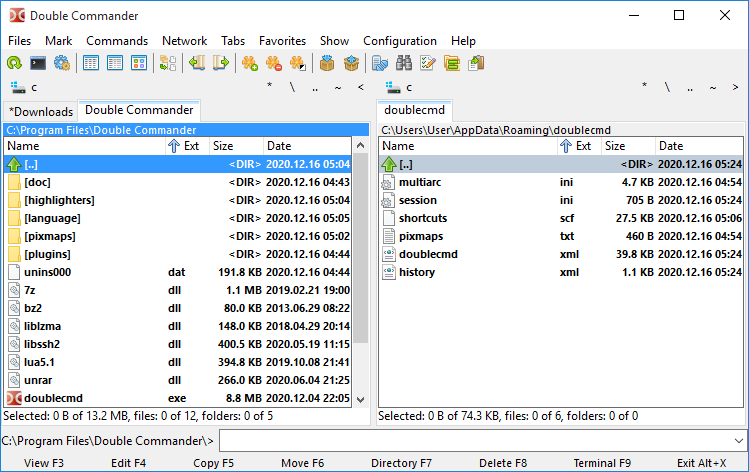
- Multi-Tab Browsing for Dozens of Folders: Just like a web browser, you can keep your Downloads, design assets, media folders, and archives open in tabs and switch with a single click—no more cluttered taskbar.
- Auto-Restores Your Last Session on Relaunch: Close the app or reboot your computer, and when you open it again, all dozen-plus folder tabs are still right where you left them. No more clicking through nested directories to get back to work.
- Native Look & Feel, Zero Learning Curve, High Performance: Right-click menus and basic shortcuts match your system’s native file manager, so you barely need to adjust. Compiled natively, it opens huge folders and switches tabs smoothly without the lag of web-wrapped apps.
- Dual-Pane Layout for Fast Copy & Comparison: With side-by-side panels, you can pick the source on the left and destination on the right—comparing folders, copying, pasting, and dragging files across directories is way faster than in a single window.
- Consistent Cross-Platform Experience: Works the same way across Windows, Mac, and Linux, so switching machines never breaks your workflow.
Free Download Double Commander (Windows / Mac / Linux)
Double Commander tabbed file manager screenshot
Other Similar File Managers (and Their Drawbacks)
Besides Double Commander, there are several well-known alternatives, though most come with trade-offs like paid licenses, single-OS lock-in, sluggish performance, or a steeper learning curve:
1. Total Commander
- Pros: The classic dual-pane pioneer on Windows, blazingly fast with a huge plugin ecosystem.
- Cons: Paid software (unregistered copies pop up a numbered nag screen on every launch) and no Mac support—Windows only.
2. Directory Opus
- Pros: One of the most feature-packed file managers on Windows, with deep UI and hotkey customization.
- Cons: Expensive one-time license, Windows only, and comes with a noticeable learning curve and setup overhead.
3. Qspace / ForkLift (Mac Only)
- Pros: Popular multi-pane file managers on macOS with polished native UIs, dual/quad panes, and remote connections.
- Cons: Both are paid and Mac only, so if you also work on a Windows PC, you can’t keep a unified workflow.
4. Files App (Modern Windows File Manager)
- Pros: Great-looking modern UI with rounded corners, mica effects, and tabs that feel like an idealized Win11 Explorer.
- Cons: Noticeably slower than native C++/Pascal tools—large folders can stutter when opening or scrolling; no Mac support, and some workflows take getting used to.
5. FreeCommander XE
- Pros: Also uses a clean dual-pane + multi-tab layout.
- Cons: Windows only; while there is a free version, the 64-bit build generally requires a donation/paid license, and its update pace and cross-platform support trail behind Double Commander.
Which One Should You Choose?
- If you only use one OS and don’t mind paying: Qspace for Mac, or Total Commander / Directory Opus for Windows.
- If you want something completely free, open-source, transparent, and safe, with multi-tab + dual-pane efficiency on both Windows and Mac: go straight for Double Commander.
More References
Double Commander Keyboard Shortcuts