Tabbed File Manager: Free & Open-Source Double Commander
One of the most annoying parts of organizing files on a computer is ending up with a dozen folder windows cluttering your taskbar or Dock, forcing you to alt-tab back and forth. If you’re looking for a free, handy tabbed file manager, give Double Commander a try. I’ve been using it for a long time and genuinely recommend it—it runs natively on Windows, Mac, and Linux.
The Most Time-Saving Features
1. Tabbed Browsing Keeps Your Taskbar Clean
Managing multiple folders on Windows or Mac usually means opening separate windows and constantly switching between them. Double Commander puts everything into tabs inside a single window, just like a web browser, so you can jump between folders with one click and keep your taskbar clean.
2. Dual-Pane Layout for Effortless Cross-Folder Work
By default, the interface splits into left and right folder panels (and each panel can hold its own set of tabs). When copying, moving, or comparing files between two directories, you just select on the left and drag or press a shortcut to send them to the right—no more bouncing back and forth in a single window.
3. Auto-Restores Your Last Session on Relaunch
We’ve all closed an app or rebooted halfway through a task, only to waste time clicking back through nested folders next time. Double Commander automatically restores your last opened paths and all tab states when you reopen it, so you can pick up right where you left off.
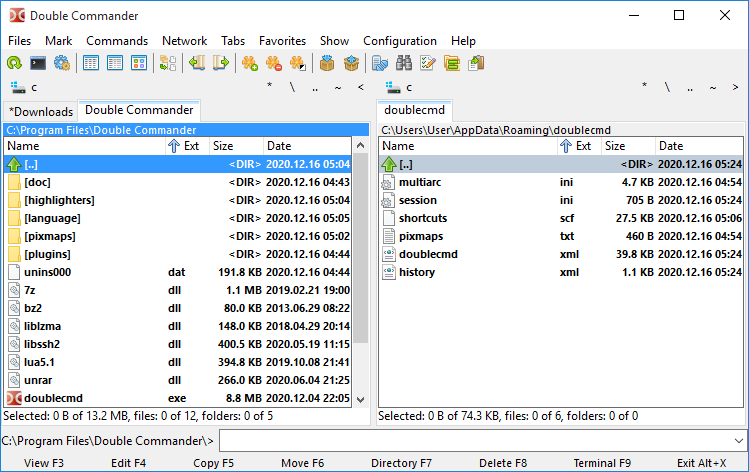
4. Familiar System Style with Zero Learning Curve
Many dual-pane tools feel overly “geeky” and change everything down to the context menu. Double Commander sticks to your OS’s native file manager habits—right-click menus and everyday shortcuts work just like you’re used to, so you don’t have to relearn anything to get started.
Double Commander (DC) is completely free and open-source. Unlike Total Commander, which is paid software with an annoying nag screen on every launch, DC is a great free alternative.