Zed Editor Bugs and Workarounds: Multi-Window and Project Routing Issues
Zed has captured considerable attention as a high-performance code editor built from the ground up in Rust. Its launch speed, fluid typing, and tiny memory footprint make it a compelling alternative to Electron-heavy IDEs.
However, Zed—particularly its Windows port—still exhibits subtle yet frustrating bugs related to window routing and project switching. Here is a breakdown of two prominent bugs developers frequently encounter, along with reliable workarounds.
Bug Reproduction
Bug 1: Explorer “Open with Zed” Overwrites the Active Window Project
- Expected Behavior: When Project A is currently open in Zed and you right-click another folder (Project B) in Windows Explorer to open it, the editor should spawn a new independent window for Project B, leaving Project A untouched (just like VS Code).
- Actual Behavior: Zed does not create a new window. Instead, it replaces or injects the new folder directly into the first active window, wiping out your current workspace context.
Bug 2: Ctrl + Shift + N New Window Redirects Recent Projects Back to Window 1
When users run into Bug 1, a natural response is to manually create a second window:
- Press
Ctrl + Shift + Nto create a fresh, separate Zed window (Window 2). - Inside Window 2, click a target project from the startup screen or the Recent Projects dropdown.
- The bizarre bug occurs: Instead of loading the project in Window 2, Zed teleports focus back to Window 1 and opens the project there! Window 2 remains completely blank, throwing the entire session management into confusion.
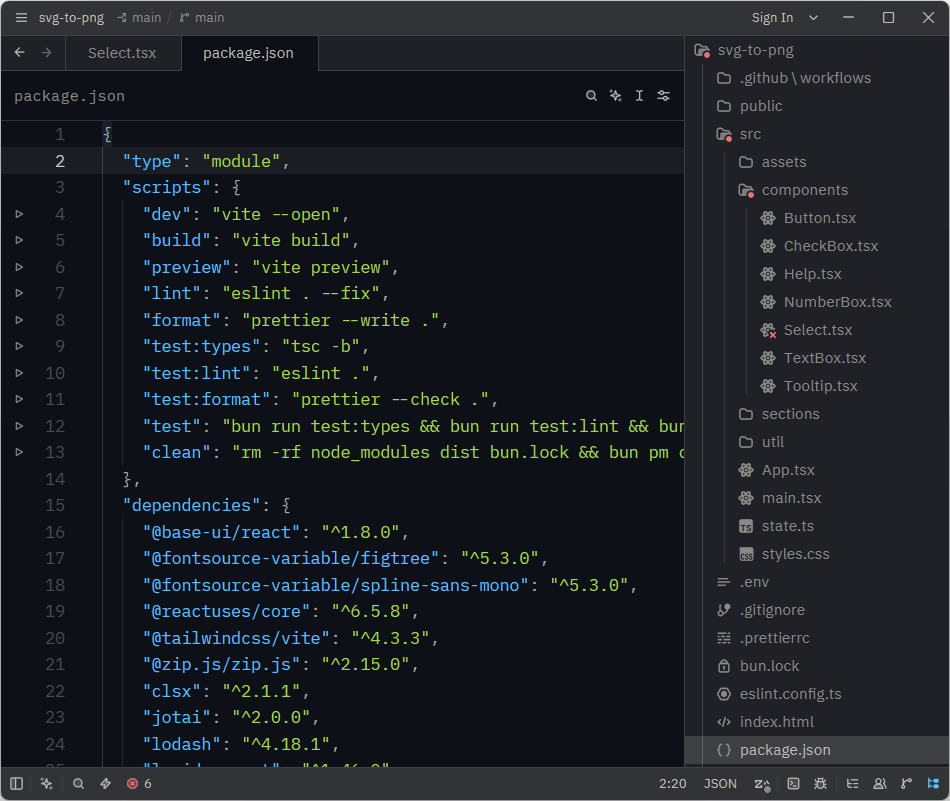
Practical Workarounds
Until Zed’s core team refactors the IPC and multi-window session routing on Windows, you can reliably bypass these quirks using the following methods:
Method 1: Use the Workspace Switcher in the Top-Left Header
- Press
Ctrl + Shift + Ninside Zed to launch a new window. - In the top-left corner of the newly created window, click the project title / workspace switcher icon. Selecting your project from this dropdown correctly loads it into Window 2 without bouncing back to Window 1.
Method 2: Manually Open via File -> Open... (Avoid “Recent Projects”)
- Launch a new window via
Ctrl + Shift + N. - Do not click the “Recent Projects” history list.
- Instead, go to the top menu and select
File -> Open...(or pressCtrl + O/Ctrl + Shift + O), and pick the folder via the native file dialog. This binds the new project session cleanly to the active window.
Root Cause Analysis
The underlying issue stems from Zed’s single-instance IPC architecture and project session mapping on Windows:
- Unconditional Routing to the Primary Window:
When launching Zed via the Windows Explorer context menu, external arguments are passed to Zed’s single-instance background listener. Because the Windows integration lacks multi-window dispatch logic, it defaults to piping the new directory into the primary active window. - Session Persistence Traps:
Zed saves persistent state for each recent workspace. When selecting a recent project from secondary windows, Zed attempts to restore that workspace’s previously bound window handle, mistakenly activating Window 1 rather than the caller window.
Conclusion
While Zed’s native Rust core delivers unmatched rendering throughput and ultra-low RAM usage, its multi-window orchestration and desktop shell integration on Windows still have room to mature compared to a decade-old tool like VS Code.
If you are juggling multiple projects daily, using the workarounds above will keep your workflow smooth while future upstream updates land.