Right-Click Menu Disappears When Taking a Screenshot? How to Capture It on Windows
There are many times when you need to capture a screenshot of a mouse right-click menu—whether showing someone a cascading context menu, documenting application settings, or capturing a complex multi-level right-click menu in an Excel spreadsheet.
However, you likely run into this frustrating problem: the moment you press hotkeys for chat apps or third-party screenshot utilities (like Alt + A, Ctrl + Alt + A, etc.), the right-click menu immediately collapses and disappears from the screen.
You don’t need any third-party software or browser extensions to fix this. Windows’ native screen capture key handles it seamlessly.
Use the Native Print Screen Key (Fastest & Easiest)
Common screenshot hotkeys make the context menu vanish because they spawn a new background window, stealing system focus. The keyboard’s built-in print screen key, on the other hand, triggers at the hardware level without shifting focus away from your active window.
Step-by-Step Instructions:
- Locate the screenshot key: Look near the top-right corner of your keyboard for Print Screen, PrtSc, or PrtScn. On slim laptops, you may need to press Fn + PrtSc.
- Open the right-click menu: Right-click on your target to fully expand the menu.
- Press the screenshot key: Keeping your hands off the mouse, simply tap the Print Screen key.
In Windows 11 (2023 update and later), the entire display freezes slightly and dims, but the open context menu remains perfectly visible. The mouse cursor turns into a crosshair—simply click and drag a rectangular selection box around the right-click menu.
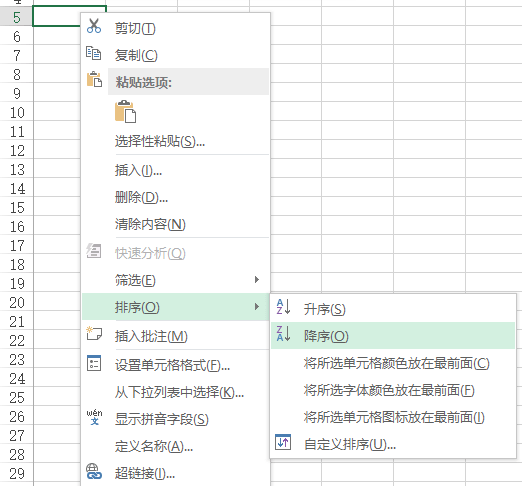
How to Quickly Save the Screenshot as an Image File
Whether you cropped a region on Windows 11 or copied the full screen on an older Windows version (like Windows 10 or 7), your screenshot is already sitting safely in your clipboard:
- Paste directly: Press
Ctrl + Vinside any chat app, document, or email body to paste the captured image immediately. - Export to a standalone file (no digging through folders):
While Windows 11 saves images toPictures\Screenshots, that directory is nested deep and cluttered with past captures. A much faster workflow is to open:
👉 Paste to Save Image Tool (https://it365.janqi.com/paste-to-save-image/en/)
Switch to the browser and pressCtrl + V. The tool instantly reads your clipboard and automatically downloads the original high-resolution image to your downloads folder—no need to search nested directories or paste into Word first.
Technical Explanation: Why Do Context Menus Disappear During Screenshots?
Why are right-click menus so prone to closing when pressing hotkeys? There are two main technical reasons:
1. Window Focus Loss
In Windows UI architecture, right-click menus are classified as temporary popup windows. The system actively monitors global window focus: the second the mouse clicks outside the menu or another process takes foreground focus, Windows assumes you’re done and immediately destroys the popup.
Third-party tools launch a transparent fullscreen overlay to capture screen coordinates, which instantly steals focus and triggers the popup’s auto-dismiss routine.
2. Default System Interception of Alt & Ctrl
Many screenshot shortcuts involve keys like Alt or Ctrl. In standard Windows keymapping, pressing Alt tells the OS to activate or toggle the main application menu bar, disrupting the active state of the open context menu before the full shortcut sequence even completes.
In contrast, Print Screen is a direct hardware interrupt. It commands the OS and GPU to sample the current desktop framebuffer instantaneously without launching an active overlay window. As a result, the right-click menu stays frozen on screen for you to capture cleanly.
This guide answers the following common questions:
- What to do when right-click menus disappear during screenshots
- How to take a screenshot with an open right-click context menu
- How to stop context menus from hiding when screenshotting
- How to capture multi-level cascading right-click menus on PC
- Why shortcut keys close popup menus when taking a screenshot