Download File From URL Online
If you have a direct file download link (URL) and want to save it directly to your computer or mobile device without extra hassle, this free online tool gets the job done instantly:
👉 Online Tool Entry: Download File From URL Online
Website: https://download.file.from.url.abctool.info/
Step-by-Step Instructions (3 Simple Steps)
Step 1: Copy the File Link
Copy the direct HTTP or HTTPS URL of the file you want to download.
Step 2: Paste the Link into the Tool
Go to https://download.file.from.url.abctool.info/ and paste your URL into the input box.
Step 3: Trigger Browser Download to Save File
Once the link is entered, the download action area appears immediately below:
- Desktop (Recommended):
Right-click on the “Download File” button (or the generated link) and select “Save link as…”. The browser’s save dialog will pop up immediately for you to choose a folder and save the file. - Mobile Devices:
On iOS Safari or Android Chrome, long-press the “Download File” button, then select “Download Linked File” or “Download Link” from the system menu. - Direct Click:
For many file formats, simply clicking the button triggers a download. If clicking opens an inline preview in the browser tab instead, use the right-click “Save link as…” / mobile long-press method mentioned above.
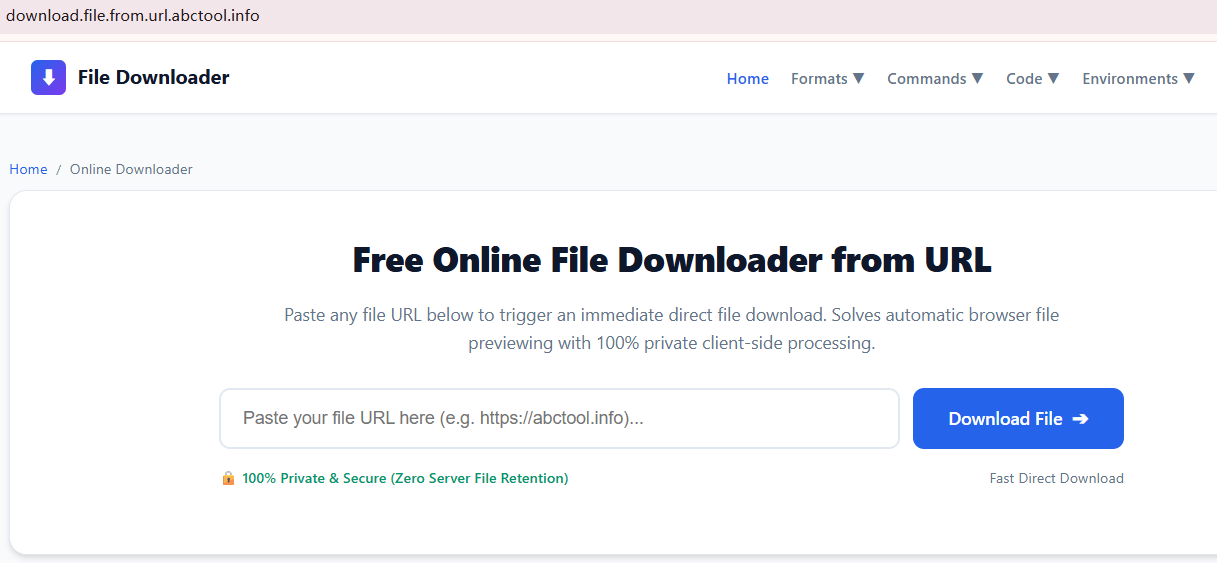
Tool Screenshot Preview
Why Doing This in Modern Browsers Is So Frustrating (Background & Pain Points)
Web browsers are powerful, but when it comes to directly downloading a file from a standalone URL, they create unexpected friction:
Browser Download Managers Lack a “+ New Download” Option
When you pressCtrl + J(orCmd + Shift + Jon macOS) in Chrome or Edge, you are only presented with past download history. Unlike dedicated download managers (such as IDM, FDM, or curl), mainstream web browsers do not provide a native button to enter a link and initiate a download.Pasting Links into the Address Bar Opens Previews Instead of Downloading
When users paste a file URL directly into the browser’s address bar and hit Enter, the browser’s default behavior for files like PDFs, images (PNG, JPG, WEBP, SVG), audio/video (MP3, MP4), plain text (TXT), HTML code, or XML is to preview and render the content inside the active tab rather than prompting a file download to disk.Mobile Browsers Make It Even Harder
Saving a file directly from a bare URL on a smartphone or tablet is notoriously cumbersome. Users often get stuck on preview screens without an obvious way to export or save the file to local storage.No Need for Bloated Third-Party Software or Extensions
Installing heavyweight desktop programs or third-party browser extensions just to download an occasional file is overkill, wasting system resources and raising privacy concerns.
Download File From URL Online was created specifically to help users solve this problem quickly: it operates 100% client-side in your browser, requires zero installation, and runs smoothly across Windows, macOS, Linux, Android, and iOS.
Helpful Tip: Enable “Ask where to save each file before downloading”
To keep better control over your downloaded files and prevent clutter in your default Downloads directory:
- Open Chrome or Edge browser settings;
- Navigate to Downloads (
chrome://settings/downloadsoredge://settings/downloads); - Turn on the switch: “Ask where to save each file before downloading”.
With this setting enabled, your browser will prompt you to choose the destination folder and verify the filename every time a file is downloaded.
👉 Online Tool Entry: Download file from URL online free