Lossless Image Crop Tool: Crop Without Losing Quality (4:5, 9:16)
When cropping a large photo, the most frustrating part is saving a sharp image only to find it looks blurry—or even worse, the file size somehow got bigger than the original.
How Does This Tool Achieve True Lossless Cropping?
Most online croppers work by drawing (rendering) your image onto a new Canvas and re-encoding it on export. During that round-trip, pixels get resampled and compressed, which strips away fine details—especially with JPG files, where every re-encode degrades quality further.
This tool takes a different approach: it uses a dedicated image engine to slice directly from the original image data, extracting only the region you keep without Canvas redrawing or lossy compression. The cropped area preserves the exact quality of the original image.
Online tool: Lossless Image Crop Tool
https://it365.janqi.com/image/crop-no-quality-loss/en/
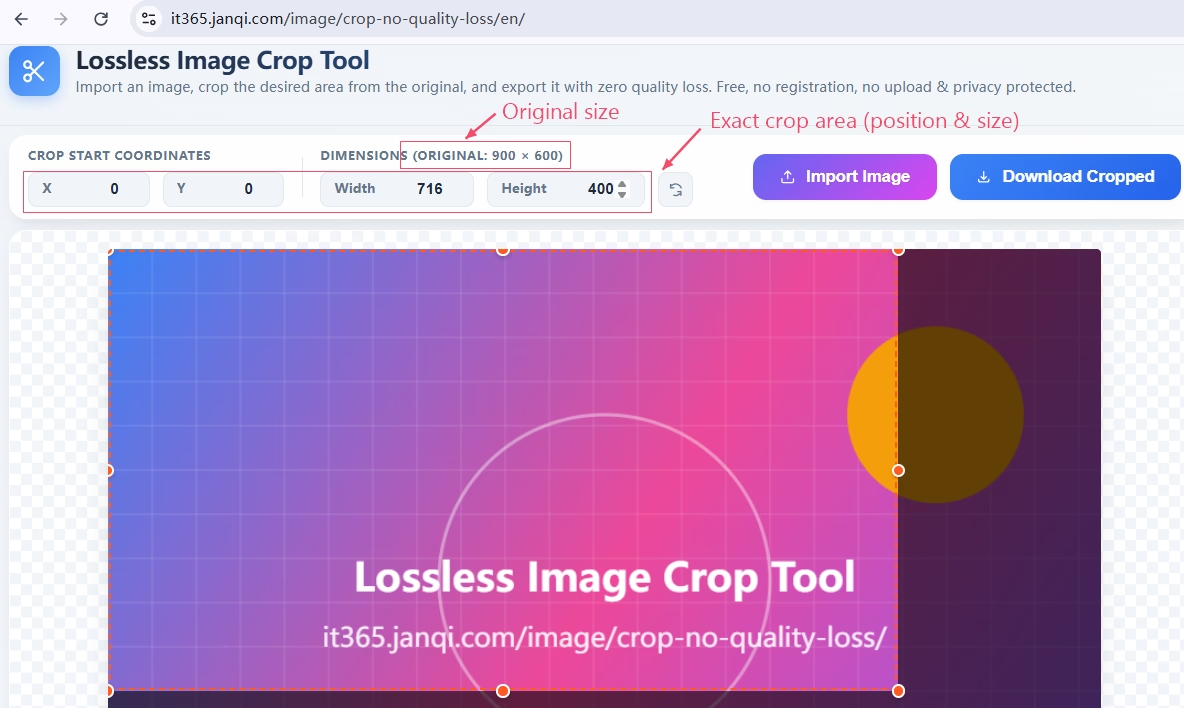
It supports both dragging a selection box with your mouse and entering exact coordinates and dimensions for pixel-level control.
How to Use It in 3 Steps
1. Import Your Image
Open the page and drag an image straight into the browser, or click Import Image to pick a local file (supports JPG, PNG, BMP, WEBP, and other common formats). If you just want to test it first, click the demo image button to load a sample right away.
2. Select the Area or Enter Exact Coordinates & Size
Once loaded, a rectangular crop box appears over the image. You have two ways to set the region, and both stay synced in real time:
- Drag with your mouse: Drag inside the box to move it around, or pull the edge and corner handles to resize freely.
- Enter exact numbers: Type the starting coordinates (X, Y) and target Width / Height in the top bar for pixel-accurate cropping. For example, if you need a
4:5or9:16ratio, just enter matching dimensions (like800 × 1000or720 × 1280).
You can roughly position the box with your mouse first, then fine-tune the numbers above. To start over, click the reset button next to the dimensions to restore the full image.
3. Download the Cropped Image
Once everything looks right, click Download Cropped in the top-right corner to save the file locally.
What Makes It Different from Ordinary Croppers?
- No quality loss, no bloated file size: It cuts directly from the original image instead of re-rendering onto a Canvas, so your image isn’t compressed and the exported file size stays smaller than or equal to the original.
- Simple & pro controls in one place: Whether you want a quick mouse drag-and-crop or exact pixel control via X/Y coordinates and dimensions, both workflows are built in.
- Runs locally in your browser: No bulky desktop software to install and no login required. Everything runs locally on your device—your photos are never uploaded to any server, and you can close the tab when you’re done.
Online tool: Lossless Image Crop Tool
https://it365.janqi.com/image/crop-no-quality-loss/en/
Need to crop a photo or avatar into a transparent-background circle without losing quality? Try our lossless Circle Image Cropper as well.