How to Quickly Download and Export Images from Figma
When reviewing Figma UI designs, you often need to download a specific icon, standalone illustration, or full design frame to your local computer—especially to feed into an AI for frontend development.
Digging through the right-hand panel for the Export section, selecting resolutions, and clicking export every single time is tedious—and on complex layers, it is easy to select the wrong node. The fastest workflow is simply right-clicking the element on the canvas, copying it as PNG, and saving it out.
1. Copy as PNG Directly in Figma
Depending on what you need to export, here is how to select it:
Download a Full Design Board or Frame
- Click directly on the title text above the design board (the root Frame or Group name) to select the entire frame at once.
- Right-click and choose Copy as -> Copy as PNG.
Download a Single Icon or Element
- Double-click the target icon or element on the design canvas to drill down directly to its layer.
- Right-click and choose Copy as -> Copy as PNG.
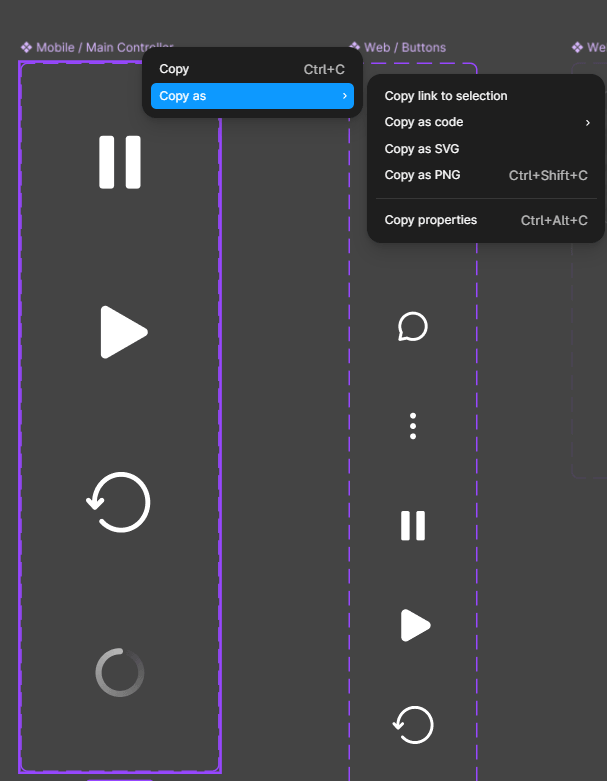
💡 Shortcut Tip: You can also use
Ctrl + Shift + C(orCmd + Shift + Con macOS). Once memorized, you just click the element and hit the hotkey to copy a transparent PNG immediately.
2. How to Save the Copied Image to a File
Once copied as a PNG, the image resides in your clipboard. To turn it into an actual image file on your hard drive, here are two quick ways:
Recommended: Use the Online “Paste to Save Image” Tool
Open the dedicated helper tool:
Online Tool: Paste to Save Image Tool
https://it365.janqi.com/paste-to-save-image/en/
- After copying the image in Figma, switch over to the tool page;
- Press
Ctrl + Vto paste; - The tool immediately detects and renders the image. Click the download button to save it as a high-quality, full-resolution PNG file with transparency preserved.
Offline Alternative: Save via Microsoft Word
If you are offline or prefer a local app:
- Open Microsoft Word and create a blank document;
- Press
Ctrl + Vto paste the copied image into Word; - Right-click the pasted image and select Save as Picture…;
- Choose your destination folder and click Save.