How to Create a Download Task in Chrome (Works for Edge & Safari & Firefox)
If you are searching for this question, you are probably in the exact same boat as me: you already have a direct download link, but you simply cannot find any “Add Download Task” or “New Download” button anywhere in Google Chrome.
Pressing Ctrl + J only opens your download history list. And if you paste the file URL directly into Chrome’s address bar, the browser often just previews the file in a new tab (especially for PDFs, images, media, or plain text) instead of saving it to your computer.
Here is a quick and simple way to solve this without installing any software or extensions:
👉 Online Tool: Download File From URL Online
Website: https://download.file.from.url.abctool.info/
Quick Steps to Add a Download Task
- Copy your direct file link (HTTP or HTTPS URL).
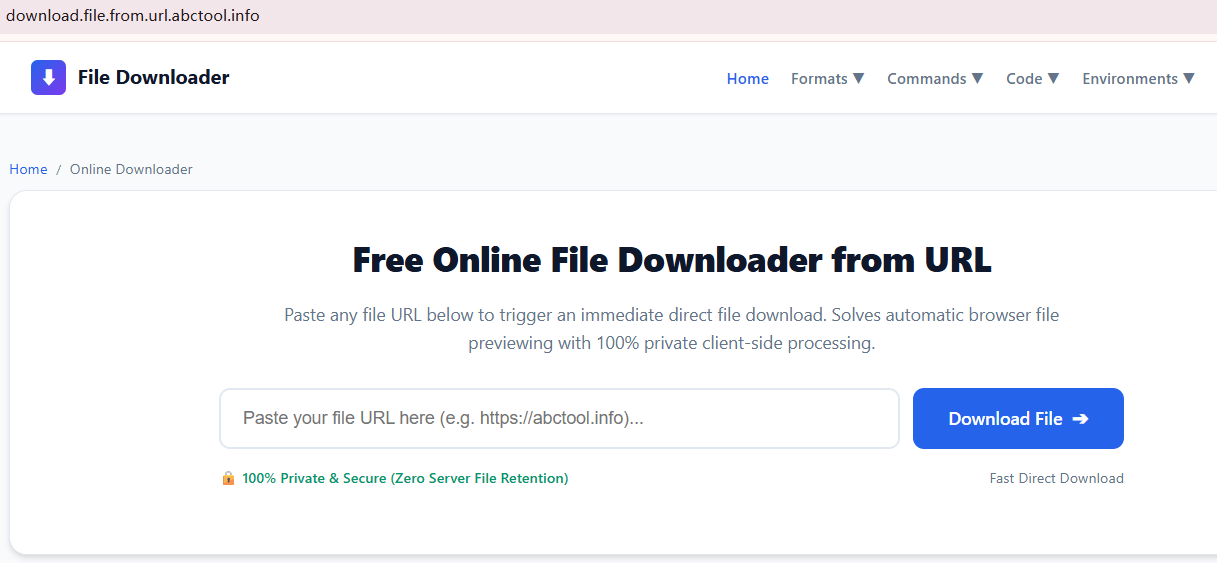
- Open Download File From URL Online and paste the link into the input field.
- Start the download:
- On Desktop: Right-click the generated “Download File” button (or link) and click “Save link as…”. The save dialog will immediately pop up for you to pick a folder and save the file.
- On Mobile: Long-press the “Download File” button and choose “Download Link” or “Download Linked File”.
Screenshot Preview
Also Works for Microsoft Edge & Mozilla Firefox
This method isn’t limited to Google Chrome—it works identically across all modern web browsers because it triggers the browser’s standard link-saving mechanism:
- Google Chrome: Right-click → Save link as…
- Microsoft Edge: Right-click → Save link as…
- Mozilla Firefox: Right-click → Save Link As…
- Apple Safari: Right-click → Download Linked File As…
No complicated setups, no third-party download clients, and no browser add-ons required. Just paste the URL and grab your file.
👉 Online Tool: Download File From URL Online