How to Crop an Image Without Losing Quality (Lossless Image Cropper Online)
When editing high-resolution photos from a DSLR, design assets, or crystal-clear screenshots, many people run into a frustrating issue: a crisp 20MB image becomes noticeably blurry, pixelated, or full of compression artifacts right after cropping.
The file size shrinks drastically down to a couple hundred kilobytes, text edges lose their sharpness, and fine details vanish.
Why do most tools ruin image quality when cropping?
There are two primary reasons:
- Cropping a downscaled preview instead of raw pixels: Many online tools scale your high-res image down to fit the browser viewport, and then simply take a screenshot of that smaller viewport. As a result, you lose more than half of the original resolution.
- Aggressive lossy compression behind the scenes: Many image utilities automatically apply heavy JPEG compression (often capped at 70% quality or lower) upon export to save bandwidth, leading to color banding and visible blur.
If you don’t want to install bulky software like Photoshop just to make a clean crop, this browser-based lossless cropping tool from the it365 toolbox does the job without sacrificing a single pixel:
Online Tool URL: Lossless Image Cropper (it365 Online Version)
https://it365.janqi.com/image/crop-no-quality-loss/en/
Tool Screenshot:
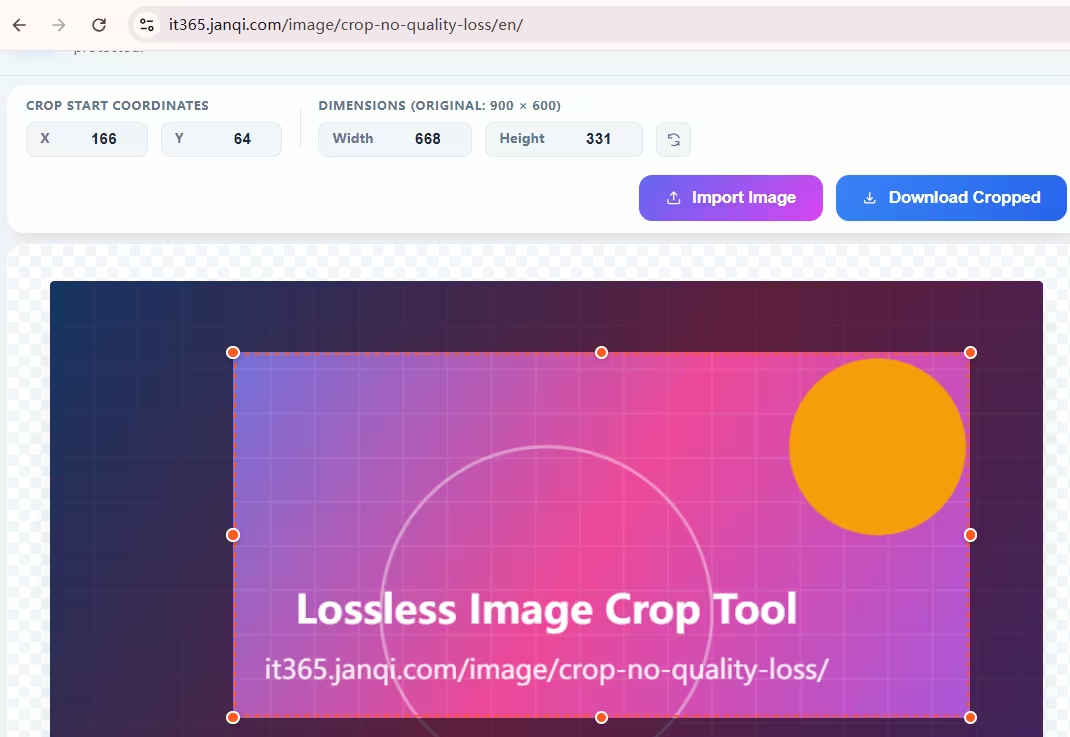
Step-by-Step Guide: How to Crop an Image Losslessly
Designed specifically for maintaining original clarity and exact pixel boundaries, this tool offers a straightforward workflow:
Step 1: Import Your High-Resolution Image
Open the web page and click the central “Import Your Image” area to select a file from your computer.
You can also drag and drop any image file directly onto the page. If you’d like to test the tool first, click the “Try with Demo Image” button to load a sample image instantly.
Step 2: Adjust Your Crop Box (Drag & Drop or Exact Pixel Inputs)
Once the image is loaded, you have two intuitive ways to define the cropped area:
- Interactive Visual Box: Click and drag the highlighted selection box across your image, or drag its corner and edge handles to resize it freely.
- Pixel-Perfect Numeric Controls (Recommended): On the left panel, you can type in exact numeric values:
- Crop Start Coordinates: Set the precise starting point (
XandYpixel offsets). - Crop Dimensions: Enter exact target
WidthandHeightin pixels. - Preset Aspect Ratios: Use quick buttons like 1:1, 4:3, 16:9, or Free Ratio to lock proportions effortlessly.
- Crop Start Coordinates: Set the precise starting point (
Step 3: Choose Output Format and Download
After framing your crop, configure the output options on the left:
- Format Selection: Choose between PNG (lossless with transparency), JPEG (standard photo), or WebP.
- Quality Slider: If exporting as JPEG, slide the quality slider up to 100% to ensure zero compression artifacts.
- Click “Export & Download Cropped Image” at the bottom. The tool slices directly into the image’s raw pixel data and immediately downloads the full-resolution result to your computer.
Key Features & Highlights
1. True 1:1 Pixel Extraction with Zero Quality Loss
Unlike tools that grab downscaled canvas snapshots, this tool extracts pixels directly from the original bitmap according to the exact coordinate boundaries. Whatever the original resolution, bit depth, or color profile was, the cropped piece retains 100% of its native clarity.
2. Precise 1-Pixel Accuracy
Whether preparing e-commerce product listings, app UI icons, or strict passport/ID photo specifications (e.g., exact 800×800 or 1200×630 px), manual dragging can sometimes miss by a couple of pixels. The numeric input fields give you exact, sub-pixel-free precision.
3. 100% Client-Side Processing (Private & Secure)
All image rendering and slicing operations happen directly inside your local browser. Your images are never uploaded to any remote server or stored in the cloud. It works even when your internet connection is offline, guaranteeing complete data privacy.
4. Free Forever, No Watermarks, No Sign-Up
No account registration, no credit card, and no hidden subscriptions. The exported high-definition images are clean, untouched, and free of annoying watermarks.